01. 오라클 데이터베이스 설치하고 계정 설정하기
(1) MacBook Air M3 도커에 Oracle 설치
참고: https://velog.io/@daram_dev/Mac-오라클-21c-설치하기
Mac 오라클 21c 설치하기
노트북을 바꾸면서 맥 환경도 경험해보고 싶어 맥북 에어 M3를 구매했습니다^^하지만 오라클에서 맥을 지원하지 않는다는 점...도커를 이용해서 오라클을 설치해야되는 데아뿔사! image를 pull 땡
velog.io
- 설치
# 0. docker 설치 # 1. colima 설치 gaeun@iga-eun-ui-MacBookAir ~ % brew install colima # 2. colima 실행 gaeun@iga-eun-ui-MacBookAir ~ % colima start --memory 4 --arch x86_64 INFO[0000] starting colima INFO[0000] runtime: docker INFO[0000] starting ... context=vm INFO[0043] provisioning ... context=docker INFO[0048] starting ... context=docker INFO[0052] done # 3. oracle 21c 설치 (container name: oracle, password: test1234) gaeun@iga-eun-ui-MacBookAir ~ % docker run -d --name=oracle --restart=unless-stopped -p 1521:1521 -e ORACLE_PASSWORD=비밀번호 gvenzl/oracle-xe:21-full Unable to find image 'gvenzl/oracle-xe:21-full' locally 21-full: Pulling from gvenzl/oracle-xe a766d57cb1bf: Pull complete 52474dab2626: Pull complete a73bd3f8146e: Pull complete 2352b81d17b7: Pull complete 7be8fb28de72: Pull complete 55bf42f29959: Pull complete Digest: sha256:7d11bf91cc359b5daa83891f94ea44043787ab589085141cc886cf43274a75d1 Status: Downloaded newer image for gvenzl/oracle-xe:21-full 4dcb55b48e34f5869e8a2c082b6f4e2c5f89315bc8e275085eb276bffa37b3d2 # 4. 컨테이너 실행 확인 gaeun@iga-eun-ui-MacBookAir ~ % docker ps CONTAINER ID IMAGE COMMAND CREATED STATUS PORTS NAMES 4dcb55b48e34 gvenzl/oracle-xe:21-full "container-entrypoin…" 52 seconds ago Up 51 seconds 0.0.0.0:1521->1521/tcp, [::]:1521->1521/tcp oracle # 5. oracle 컨테이너에서 bash 실행 # docker exec -it 컨테이너명 bash gaeun@iga-eun-ui-MacBookAir ~ % docker exec -it oracle bash # 6. sqlplus 접속 bash-4.4$ sqlplus SQL*Plus: Release 21.0.0.0.0 - Production on Sat Nov 22 19:15:35 2025 Version 21.3.0.0.0 Copyright (c) 1982, 2021, Oracle. All rights reserved. # 7. user-name, password 입력 Enter user-name: system Enter password: - 종료
exit # docker stop 컨테이너명 docker stop oracle colima stop - 실행
colima start --memory 4 --arch x86_64

# docker start 컨테이너명
docker start oracle

# docker exec -it 컨테이너명 bash
docker exec -it oracle bash

sqlplus
(2) 계정 생성 + 설정
- 실습 파일 `doitoracle_scott.sql` 다운로드
https://github.com/GroovySunday/doit-oraclesql - sqlplus 접속
- sqlplus
- 오라클 데이터베이스 접속용 프로그램
- 오라클 데이터베이스 설치시 함께 설치
- sys 계정
- 오라클 데이터베이스에서 최고 권한을 가진 관리용 계정
- 데이터베이스 관리자(DBA)를 제외하면 사용할 일 거의 X
- sqlplus
- 계정 설정
# 1. SCOTT 계정 생성을 위한 옵션 설정 # 클라우드 환경용 계정명 앞에 c## 접두어 사용하지 않고 계정 이름 그대로 사용하고자 옵션 설정 ALTER SESSION SET "_oracle_script"=true; -- Session altered. # 2. SCOTT 계정 생성 # 계정 이름 scott, 접속 비밀번호 tiger, 테이블 스페이스 권한 기본 권한으로 지정 create user scott identified by tiger default tablespace users quota unlimited on users; -- User created. # 생성한 SCOTT 계정에 접속 권한과 테이블 생성 권한 부여 grant create session, create table to scott; -- Grant succeeded. # 3. SCOTT 계정으로 접속 conn scott/tiger -- Connected. show user -- USER is "SCOTT" # 4. 실습 데이터 생성 옵션 실행 # 실습 데이터의 날짜 형식 맞추기 위해 옵션값 설정 ALTER SESSION SET "_oracle_script"=true; -- Session altered. ALTER SESSION SET nls_date_language='american'; -- Session altered. ALTER SESSION SET nls_date_format='dd-MON-rr'; -- Session altered. # 현재 경로 확인 host ls -- /opt/oracle - 로컬에 있는 실습 sql 파일 도커로 복사
// docker cp 로컬경로 컨테이너명:도커경로 docker cp /Users/gaeun/Downloads/doitoracle_scott.sql oracle:/opt/oracle - 실습 sql 파일 실행
# 5. sqlplus 다시 접속 # 6. 복사되었는지 확인 host ls # 7. sql 파일 실행 @doitoracle_scott.sql - 실습 데이터 확인
- desc 명령어: 특정 테이블이 어떤 열로 구성되는지 확인할 때 사용

- desc 명령어: 특정 테이블이 어떤 열로 구성되는지 확인할 때 사용
02. SQL Developer 설치 + 실행
- SQL*Plus와 같은 텍스트 기반 콘솔 응용 프로그램은 편의성과 가독성 떨어지는 경우 존재
- SQL Developer 프로그램 통해 편리한 사용 가능
(1) SQL Developer 설치
https://www.oracle.com/tools/downloads/sqldev-downloads-2311.html
Oracle SQL Developer Downloads 23.1.1
This archive. will work on a 32 or 64 bit Windows OS. The bit level of the JDK you install will determine if it runs as a 32 or 64 bit application. This download does not include the required Oracle Java JDK. You will need to install it if it's not already
www.oracle.com
- 24.3 버전 실행시 무한 로딩 오류가 있어 23.1.1 설치
- MacBook Air M3를 사용 중이므로 Mac ARM64 with JDK 17 included 을 설치 후 압축 해제 → SQL Developer 프로그램 실행
(2) 계정 접속 설정
- 좌측 상단 접속 메뉴에서 + 버튼 눌러 접속 추가
- 정보 입력 후 테스트 클릭 → `상태: 성공` 표시 확인 → 접속 클릭

- 접속 후 데이터 확인
- ctrl + enter : 명령어 실행
desc emp;

select * from emp;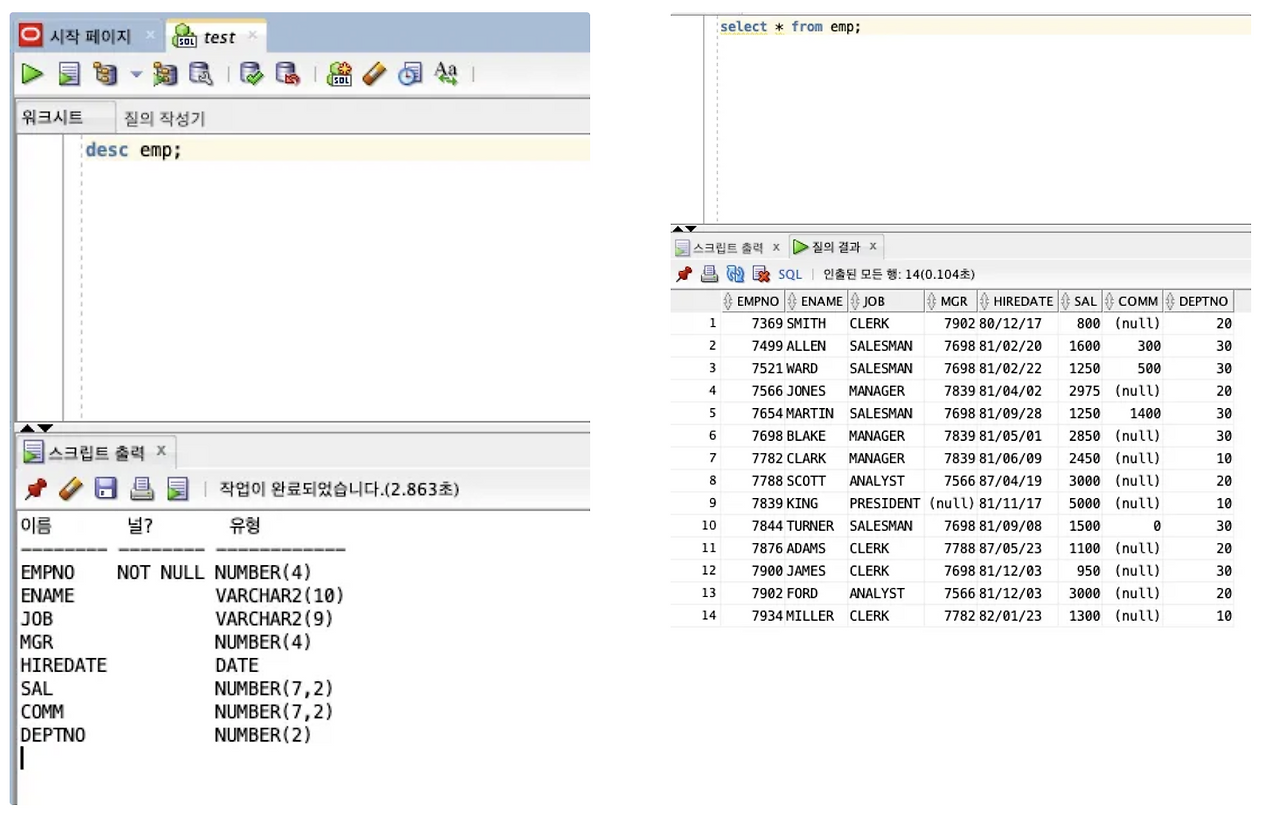
- ctrl + enter : 명령어 실행